
Download WizTree – Fast Disk Space Analyzer
Scan your entire hard drive in seconds. WizTree reads the NTFS Master File Table directly to show which files and folders use the most space.
What Is WizTree?
A disk space analyzer built for speed, WizTree scans NTFS drives in seconds by reading the Master File Table directly.
The Fastest Way to Find What Eats Your Disk Space
WizTree is a free disk space analyzer for Windows that tells you exactly which files and folders take up the most room on your hard drive. Developed by Antibody Software Limited, this lightweight utility has earned a strong following among system administrators and everyday users who need fast, accurate storage reports without waiting around.
Unlike older tools that crawl through directories one folder at a time, WizTree reads the NTFS Master File Table (MFT) directly. The MFT is a low-level index that Windows maintains for every file on an NTFS volume. By pulling data straight from this index, WizTree can map an entire 500 GB drive in under 10 seconds — a task that might take competing programs several minutes.
Who Should Use It
If you have ever wondered where your storage went, WizTree answers that question almost instantly. IT professionals use it to audit workstations and servers before cleanup jobs. Home users run it when their SSD fills up and they need to decide what to delete. The program works on Windows 7, 8, 10, and 11 in both 32-bit and 64-bit editions, so it covers nearly every active Windows installation out there.
Version 4.30, the most recent release, weighs in at about 5 MB for the installer and roughly 7 MB for the portable version. Because WizTree is free for personal use, there is no trial period or feature lock. A paid license exists for commercial and enterprise environments, but individual users get the full experience at no cost.
How Results Are Displayed
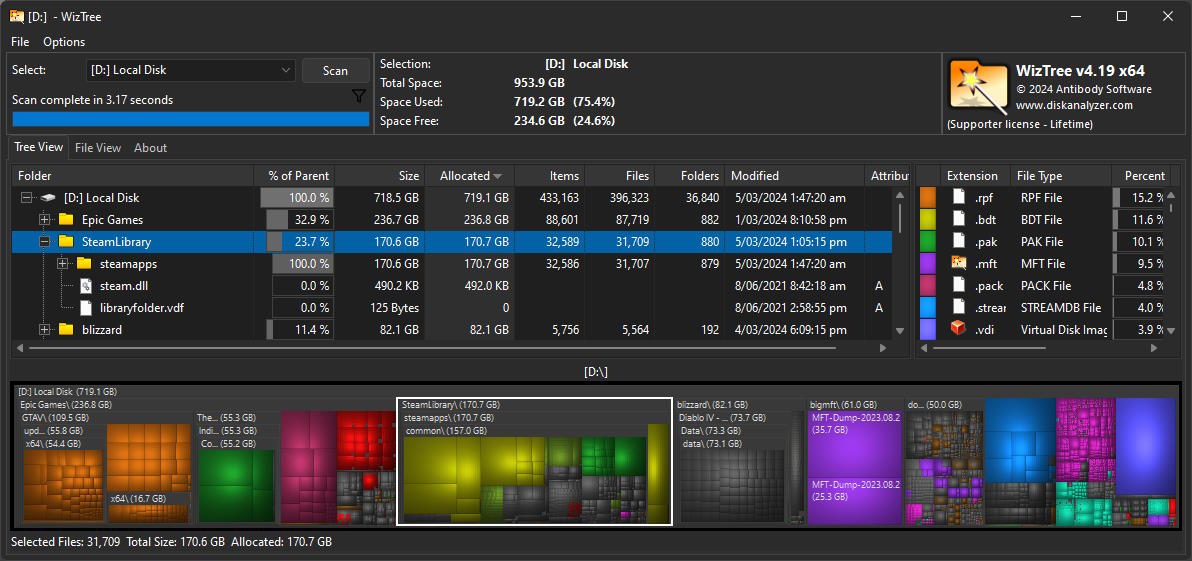
WizTree presents scan results in two views. The tree view lists folders and files sorted by size, making it simple to drill down into nested directories and spot space hogs. Below the tree view sits a colorful treemap — a visual grid where each rectangle represents a file, sized proportionally to how much space it occupies. Large rectangles jump out immediately, so you can identify bloated log files, forgotten downloads, or duplicate backups in a glance rather than scrolling through lists.
Ready to reclaim your disk space? Download WizTree and scan your drives in seconds.
Key Features
WizTree packs serious disk analysis power into a tiny, portable package. Here is what sets it apart from the competition.
MFT Direct Reading
WizTree reads the NTFS Master File Table directly, bypassing the Windows file API entirely. This approach lets it scan a 500 GB drive in under 10 seconds — roughly 20 to 50 times faster than tools like WinDirStat that crawl directories one by one.
Treemap Visualization
A colorful treemap at the bottom of the window turns raw numbers into a visual map of your drive. Each rectangle represents a file or folder sized by disk usage, so you can spot space hogs at a glance without scrolling through long directory lists.
Tree View with Size Bars
The tree view panel shows every folder in a familiar hierarchy, with percentage bars next to each entry. You can drill down into nested directories and immediately see which subfolder is responsible for the bulk of a parent folder’s disk consumption.
File View – Largest Files First
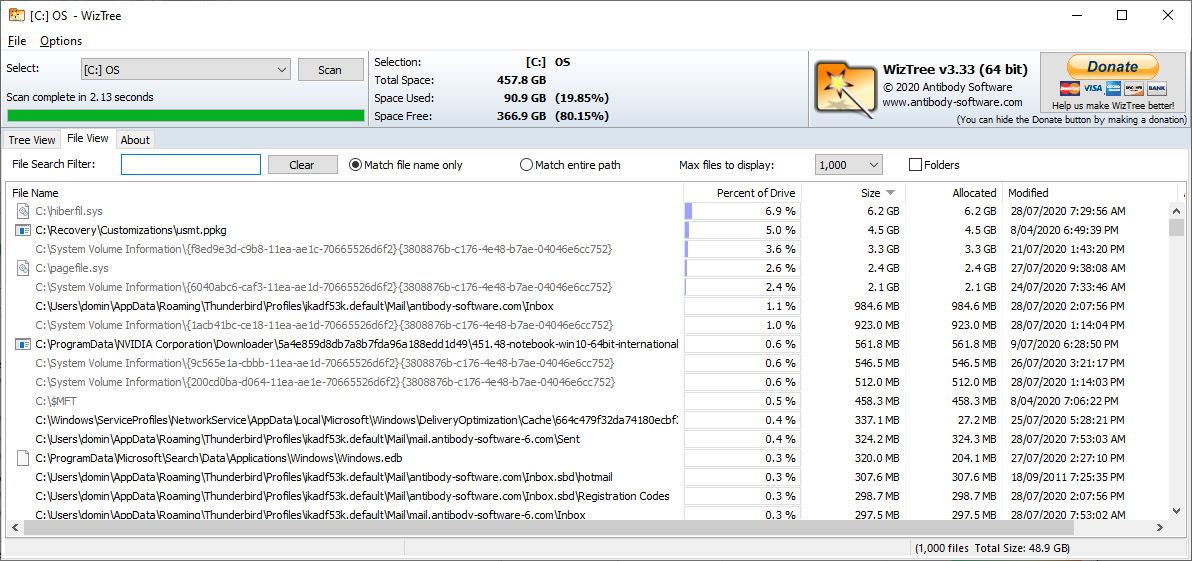
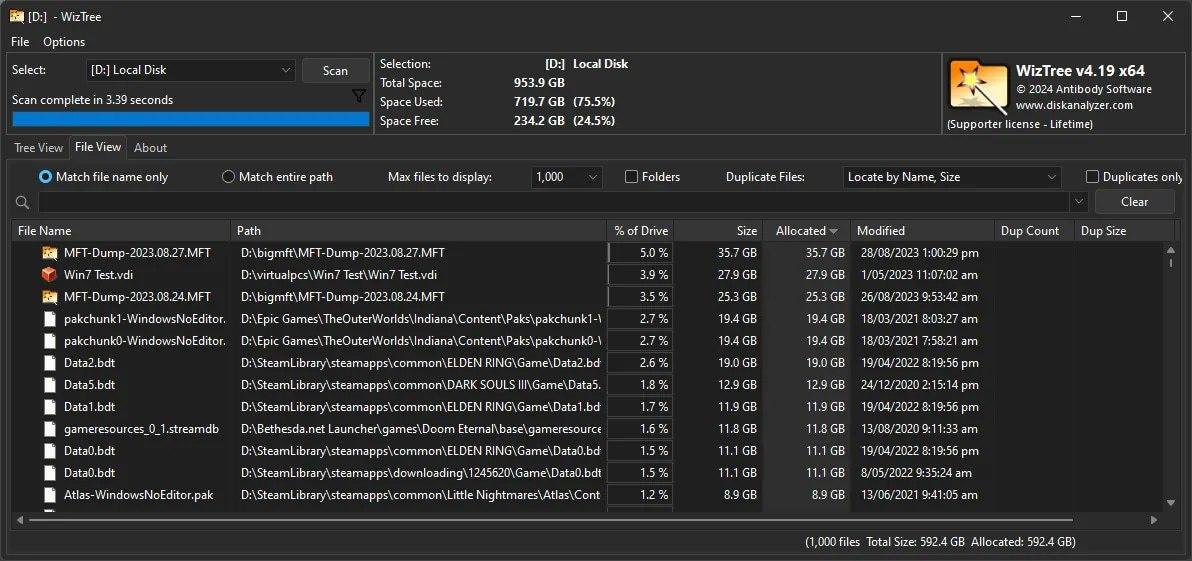
Switch to File View to get a flat list of every file on the drive, sorted by size. This is the fastest way to find individual large files buried deep in subdirectories, like forgotten ISO images, old database backups, or bloated log files.
File Types Breakdown
The File Types tab groups all files by extension and shows the total space each type consumes. You can quickly see, for example, that .mp4 files account for 120 GB while .docx files take up just 2 GB across your entire drive.
Powerful Name Filtering
Type a filename pattern (like *.tmp or *.log) into the filter bar and WizTree instantly narrows results to matching files. Wildcards and multiple patterns separated by semicolons are supported, making targeted cleanup straightforward.
All Drive Types Supported
NTFS drives get the fastest MFT-based scan, but WizTree also works with FAT, FAT32, exFAT, and network drives using a standard file enumeration fallback. USB flash drives, external HDDs, and mapped network shares all scan correctly.
Command Line Interface
Run WizTree from the command line with flags like /export to generate CSV reports automatically. System administrators use this for scripted audits across multiple machines, feeding the output into monitoring dashboards or cleanup scripts.
Portable Mode
The portable version runs directly from a USB stick with no installation required. Drop it on a flash drive, plug into any Windows PC, and scan the local drives immediately. No registry entries, no leftover files after you unplug.
Duplicate File Finder
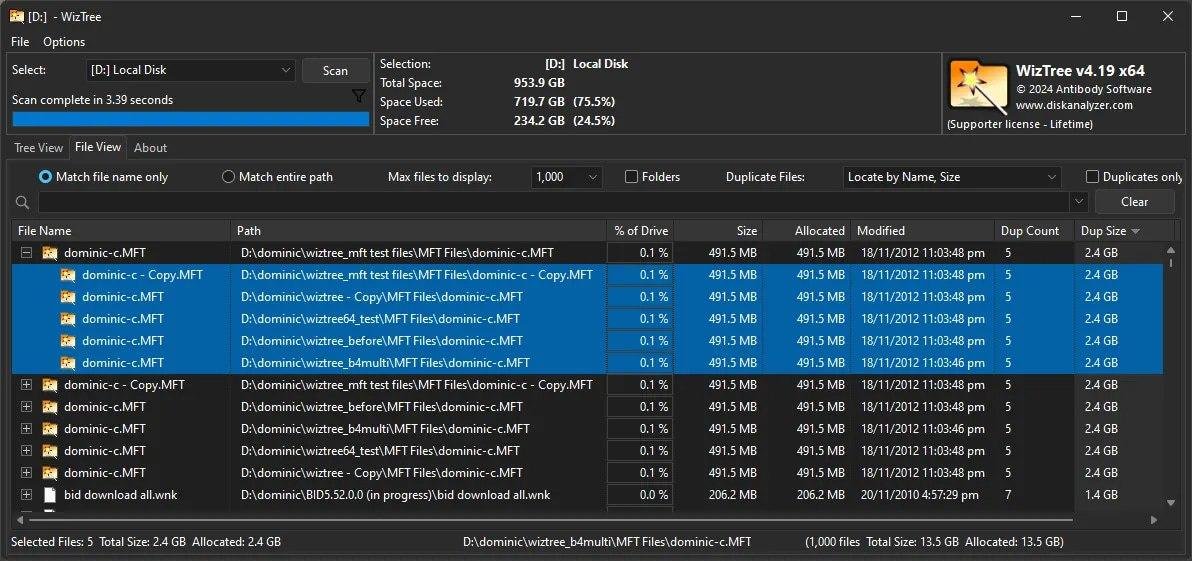
WizTree can identify duplicate files on your drive by comparing file sizes and hashes. This helps recover wasted space from accidentally copied photos, redundant downloads, or duplicated project assets scattered across folders.
CSV and Clipboard Export
Export scan results to CSV for analysis in Excel or Google Sheets. You can also copy selected entries to the clipboard. The export includes full paths, sizes, dates modified, and file attributes for each entry in the scan.
Multi-Language Support
WizTree ships with translations for over 30 languages including German, French, Spanish, Japanese, and Chinese. The interface automatically detects your Windows locale, or you can switch languages manually from the Options menu.
System Requirements
WizTree runs on nearly any modern Windows PC. Here is what you need to get the fastest disk scan possible.
| Component | Minimum | Recommended |
|---|---|---|
| Operating System | Windows 7 (32-bit or 64-bit) | Windows 10 or 11 (64-bit) |
| Processor (CPU) | 1 GHz single-core processor | Dual-core 2 GHz or faster |
| RAM | 512 MB | 2 GB or more |
| Disk Space | ~5 MB (installer) or ~7 MB (portable) | 10 MB free space |
| Display | 1024 x 768 resolution | 1920 x 1080 (Full HD) |
| Permissions | Standard user (basic scan) | Administrator (NTFS MFT direct read) |
| Internet | Not required | Optional (for update checks only) |
WizTree 4.30 is a lightweight utility that works on almost any Windows machine. For the fastest scans, run it as Administrator on an NTFS drive – this allows WizTree to read the Master File Table directly, bypassing the file system entirely. Non-NTFS drives (FAT32, exFAT, network shares) are scanned using a standard file search, which is slower but still functional. The portable version needs no installation at all – just extract and run.
Download WizTree
Get the latest version of WizTree free for Windows. Choose between the standard installer or the portable edition.
WizTree downloads directly from the official Antibody Software servers. For commercial licenses, visit diskanalyzer.com.
Screenshots
See WizTree in action. Click any image to view it full size.
Getting Started with WizTree
From download to your first scan in under five minutes. This guide walks you through every step.
Downloading WizTree
Head to the download section on this page and grab the latest version of WizTree. You have two options to pick from: the standard installer (an .exe file, about 5 MB) and the portable ZIP archive (roughly 7 MB uncompressed).
For most users, the installer is the simplest choice. It places WizTree in your Program Files directory and creates a Start menu shortcut. If you prefer not to install anything, go with the portable version instead. It runs directly from whatever folder you extract it to, which makes it perfect for USB drives or locked-down work machines where you can’t install software.
WizTree ships as a single package that includes both the 32-bit and 64-bit executables. The installer detects your system architecture automatically, so you don’t need to choose between x86 and x64 editions. An ARM64 build is also available for Surface Pro X and other Windows-on-ARM devices.
Installation Walkthrough
Double-click the downloaded wiztree_4_30_setup.exe file to launch the installer. If Windows SmartScreen pops up with a warning, click “More info” and then “Run anyway.” This happens because WizTree is a small independent program and SmartScreen sometimes flags less-common publishers.
The installer walks you through five screens:
- License Agreement — Read and accept the terms. WizTree is free for personal use; commercial deployments require a paid license.
- Destination Folder — The default is C:\Program Files\WizTree. You can change this, but the default works fine for most setups.
- Additional Tasks — Check “Create a desktop shortcut” if you want quick access. The “Add to Explorer context menu” option lets you right-click any folder and select “WizTree” to scan just that folder.
- Ready to Install — Review your choices and click Install. The process takes about two seconds.
- Finish — Leave “Launch WizTree” checked to open it right away.
For the portable version, just extract the ZIP to any folder. Inside you will find WizTree.exe (32-bit) and WizTree64.exe (64-bit). Run the one that matches your system.
Initial Setup & Configuration
When WizTree opens for the first time, you’ll see a toolbar at the top with a drive selector dropdown. It defaults to your C: drive. Before scanning, take a moment to configure a few settings that’ll improve your experience.
Open Options > General from the menu bar. Here are the settings worth adjusting:
- Scan NTFS drives using MFT — Make sure this is checked (it is by default). This is the feature that makes WizTree fast.
- Include free space in results — Useful if you want the treemap to show unallocated space as a separate block.
- Show real file sizes (not size on disk) — Toggle this depending on whether you care about actual byte counts or cluster-aligned sizes. For cleanup purposes, “size on disk” is usually more practical.
- Language — WizTree autodetects your Windows locale, but you can switch to any of the 30+ supported languages here.
Under Options > Treemap, you can adjust the color brightness and style. The default “cushion” shading looks good, but some users prefer the flat style for easier reading on high-DPI displays.
Your First Disk Scan
Select the drive you want to analyze from the dropdown at the top-left of the toolbar. You can pick any local drive (C:, D:, etc.), a USB drive, or even a UNC network path. Click the Scan button or just press Enter.
On an NTFS drive with admin privileges, the scan finishes almost immediately. A 500 GB NTFS SSD typically completes in 3 to 8 seconds. The status bar at the bottom shows the scan duration when it finishes.
Once the scan is done, you will see three panels:
- Tree View (top-left) — Folders organized in a hierarchy. Click the column headers (Size, Allocated, Files, Folders) to sort. Expand folders by clicking the arrow icons.
- File View (top-right) — A flat list of every file on the drive, sorted by size. The biggest files sit at the top. This is your go-to panel for finding space hogs quickly.
- Treemap (bottom) — A visual map where each colored rectangle represents a file. Bigger rectangles mean bigger files. Hover over any block to see the file path and size in the status bar.
Click on any folder in the Tree View, and both the File View and treemap update to show only that folder’s contents. Right-click a file or folder for options like “Open in Explorer,” “Delete to Recycle Bin,” or “Copy Path.”
Try typing a filter in the Name Filter box at the top. For example, type *.iso;*.zip;*.rar to show only archive and ISO files. The display updates instantly as you type.
| Shortcut | Action |
|---|---|
| Enter | Start scan on selected drive |
| Ctrl+F | Focus the name filter box |
| F5 | Rescan current drive |
| Delete | Send selected file/folder to Recycle Bin |
| Shift+Delete | Permanently delete selected item |
| Ctrl+C | Copy selected file path to clipboard |
| Ctrl+E | Export current view to CSV |
Tips, Tricks & Best Practices
Once you have the basics down, these tricks will help you get even more out of WizTree:
- Scan multiple drives at once — Hold Ctrl and select several drives in the dropdown to scan them in a single pass. The treemap will show all selected drives combined.
- Use the command line for batch audits — Run WizTree64.exe C: /export=report.csv from a terminal to generate a CSV report without opening the GUI. Perfect for scripted server audits.
- Right-click context menu — If you enabled the Explorer integration during install, right-click any folder in Windows Explorer and select “WizTree” to scan just that folder instead of the entire drive.
- Switch between Tree/File/Types tabs — The File Types tab is often overlooked but extremely useful. It groups all files by extension, so you can see at a glance that .mp4 files take 80 GB while .docx takes 200 MB.
- Keep WizTree updated — Open Help > Check for Updates to see if a newer version is available. Updates typically include speed improvements and bug fixes. The program does not auto-update, so check manually every few months.
For detailed guides on advanced features like custom column display, exporting options, and running WizTree from a script, visit the official WizTree guides.
Ready to scan your drives? Download WizTree and find out where your storage went.
Frequently Asked Questions
Answers to the most common questions about WizTree, from installation and safety to troubleshooting and advanced disk analysis tips.
Is WizTree safe to download and use?
Yes, WizTree is safe. The software has been developed by Antibody Software Limited since 2012 and is trusted by system administrators across enterprise environments. It contains no malware, adware, or bundled toolbars.
The official installer (about 5 MB for version 4.30) has been scanned clean by major antivirus engines including Windows Defender, Malwarebytes, and Kaspersky. WizTree does not transmit your file data over the internet. It reads your NTFS Master File Table locally and never phones home with scan results. The application is digitally signed by Antibody Software, so Windows will verify the publisher name during installation.
- Only download from the official site at diskanalyzer.com — fake download sites exist that bundle unwanted software
- Right-click the installer and choose “Properties” to verify the digital signature says “Antibody Software Limited”
- Windows SmartScreen may show a warning because WizTree is not from a large corporation — click “More info” then “Run anyway”
Pro tip: If your company firewall blocks the download, grab the portable ZIP version instead. It runs without installation and leaves nothing behind on the system.
See our download section for verified links to the official WizTree installer.
Where is the official safe download for WizTree?
The official download page for WizTree is hosted at diskanalyzer.com, which is the developer’s website run by Antibody Software Limited.
Several third-party download sites redistribute WizTree, and some bundle it with unwanted adware installers. Sites like Softpedia and MajorGeeks generally provide clean mirrors, but the safest option is always the official source. The current version 4.30 (released March 2026) is available as both a standard installer (~5 MB) and a portable ZIP (~7 MB). Both are identical in functionality.
- Visit diskanalyzer.com or use our download section for a direct link
- Choose between the installer (.exe) or portable (.zip) version
- After downloading, verify the file size matches (~5 MB for installer, ~7 MB for portable)
- Check the digital signature before running: right-click the file, Properties, Digital Signatures tab
Pro tip: Bookmark the official diskanalyzer.com URL. A Google search for “WizTree download” sometimes surfaces SEO-spam sites that rank above the real page. Our download section links directly to the genuine file.
For step-by-step installation instructions after downloading, check our Getting Started guide.
Is WizTree free from malware and spyware?
WizTree is completely free from malware and spyware when downloaded from the official source at diskanalyzer.com.
The program runs entirely offline once installed. It does not collect usage telemetry, file metadata, or personal information. Your disk scan results stay on your machine. WizTree reads the NTFS Master File Table (MFT) to build its file listing, and this process happens entirely within your local operating system. No network connections are made during scanning. The only outbound connection WizTree makes is an optional update check on startup, which you can disable in Settings.
- No telemetry or analytics are sent to any server during or after scans
- No background processes remain running after you close WizTree
- The portable version writes zero data to your Windows registry
- If you use the installer version, uninstalling through Programs and Features removes all traces
Pro tip: On Reddit’s r/sysadmin and r/msp communities, WizTree is one of the most recommended disk analysis tools for enterprise use precisely because it has no phoning-home behavior. Multiple sysadmins have packet-captured its network activity and confirmed zero data exfiltration.
Read more about WizTree’s features and how it works in our features section.
Does WizTree work on Windows 11?
Yes, WizTree works on Windows 11 with full compatibility. Version 4.30 runs on all Windows 11 builds including 23H2 and 24H2.
WizTree supports Windows 7, 8, 8.1, 10, and 11 across both 32-bit and 64-bit architectures. On Windows 11, the MFT-based scanning method works the same as on older versions. You will get the full speed benefit of direct MFT reads on NTFS drives, typically scanning a 1 TB SSD in under 5 seconds. For ARM-based Windows 11 devices (like Surface Pro X), WizTree runs through the x86 emulation layer without issues, though MFT scanning still requires NTFS-formatted drives.
- Windows 11 Home, Pro, Enterprise, and Education editions are all supported
- UAC will prompt you for admin rights on first launch — accept this for full scanning capability
- If running without admin privileges, some system folders will show 0 bytes or be missing from results
Pro tip: On Windows 11, pin WizTree to the Start menu and set it to “Run as administrator” by default. Right-click the shortcut, go to Properties, Advanced, and check “Run as administrator.” This prevents incomplete scan results caused by permission issues.
For full hardware and software requirements, see our system requirements section.
What are the minimum system requirements for WizTree?
WizTree has very light system requirements. Any computer that runs Windows 7 or newer can run WizTree without trouble.
The application uses roughly 50-100 MB of RAM during a typical scan of a 1 TB drive. CPU usage spikes briefly while reading the MFT but drops to near zero once the scan completes and WizTree is just displaying results. You need about 15 MB of free disk space for the installed version. There are no GPU requirements, no .NET framework dependencies, and no runtime libraries to install separately. WizTree 4.30 is a standalone application that bundles everything it needs.
- OS: Windows 7, 8, 8.1, 10, or 11 (32-bit or 64-bit)
- RAM: 128 MB minimum (512 MB recommended for drives with millions of files)
- Disk space: 15 MB for installation, or 7 MB for the portable ZIP
- CPU: Any processor from the last 15 years will work
- Admin rights: Recommended for full NTFS MFT access on local drives
Pro tip: If you are scanning a drive with over 10 million files (common on file servers), expect WizTree to use 200-400 MB of RAM. This is still far less than WinDirStat, which can consume over 1 GB on the same drive.
Check our detailed system requirements table for minimum and recommended specs.
Does WizTree work on Mac or Linux?
No, WizTree is a Windows-only application. There are no native macOS or Linux versions available.
WizTree’s speed advantage comes from directly reading the Windows NTFS Master File Table, which is a Windows-specific filesystem structure. This technique does not translate to macOS (which uses APFS or HFS+) or Linux (which uses ext4, Btrfs, or XFS). Some users have reported running WizTree through Wine on Linux, but MFT access does not work in that environment, so WizTree falls back to the slower standard file-walking method. At that point, you lose the main speed advantage.
- macOS alternatives: DaisyDisk, GrandPerspective, or the built-in Storage Management tool
- Linux alternatives: Baobab (GNOME Disk Usage Analyzer), ncdu, or QDirStat
- If you need to analyze an NTFS drive from Linux, mount it and use QDirStat — or temporarily connect it to a Windows machine and use WizTree there
Pro tip: If you manage both Windows and Linux servers, use ncdu on your Linux boxes and WizTree on Windows. Both are fast, lightweight, and operate from the terminal or GUI respectively. Together they cover all your disk analysis needs.
See how WizTree stacks up against other tools in our features overview.
Is WizTree completely free to download and use?
WizTree is free for personal and home use. If you are using it at work or in a business setting, you need a paid license.
The free version has no feature restrictions, no time limits, and no nag screens. You get the full application with MFT scanning, treemap visualization, tree view, file type breakdown, duplicate finder, and export features. The only difference between free and paid is the license terms: personal use is free, while commercial and enterprise use requires a license starting at $12 USD per user. Volume discounts are available for organizations buying 10 or more licenses through the official site at diskanalyzer.com.
- Personal/home use: completely free, no restrictions
- Commercial/business use: paid license required ($12+ per user)
- Educational institutions: contact Antibody Software for academic pricing
- No trial period or expiration on the free version
Pro tip: If you are a freelancer or independent contractor, the personal license covers you as long as you are using WizTree on your own personal machine. The commercial license applies when the software is installed on company-owned hardware or used as part of a paid service.
Download the free version from our download section to get started.
What is the difference between WizTree free and paid versions?
The free and paid versions of WizTree have identical features. The paid license is about commercial usage rights, not extra functionality.
Both versions include MFT-based NTFS scanning, the treemap visualization, tree view and file view tabs, file type statistics, duplicate file detection, CSV export, command-line support, and the ability to scan network drives. Antibody Software does not lock any features behind the paywall. The paid license ($12 per user) simply grants legal permission to use WizTree in a commercial, government, or enterprise environment. Some organizations require proof of valid licensing for compliance audits, and the paid license covers that.
- Free version: all features, personal use only
- Paid version: all features (same), licensed for commercial use
- No “Pro” or “Premium” tier with hidden features
- Updates are free for both versions
Pro tip: If you are an MSP (managed service provider) deploying WizTree across client machines, Antibody Software offers site licenses. Reach out through their contact page at diskanalyzer.com for bulk pricing. Many MSPs on Reddit’s r/msp use WizTree as a standard part of their toolkit.
Learn about all the features included in both versions on our features page.
How do I download and install WizTree step by step?
Installing WizTree takes about 60 seconds. Download the installer from the official source, run it, and you are done.
The WizTree 4.30 installer is approximately 5 MB, so the download finishes almost instantly on any broadband connection. The installer uses a standard Windows setup wizard with no bundled adware or toolbar offers. You do not need to disable anything or uncheck hidden boxes during installation. The setup writes to Program Files and creates a Start Menu shortcut by default.
- Go to our download section and click the WizTree download button
- Open the downloaded .exe file (wiztree_4_30_setup.exe)
- If Windows SmartScreen appears, click “More info” and then “Run anyway”
- Accept the license agreement and click “Next”
- Choose an install location (default is fine for most users) and click “Install”
- Click “Finish” — WizTree will launch automatically
- On first run, UAC will ask for admin rights. Click “Yes” to allow full disk scanning
Pro tip: If you are deploying WizTree across multiple machines in an enterprise, use the portable ZIP instead. Extract it to a shared network folder and run it directly — no installation required on each machine.
For configuration tips after installation, see our Getting Started guide.
WizTree portable vs installer – which version should I choose?
Choose the portable version if you want zero system footprint. Choose the installer if you want Start Menu integration and automatic file associations.
The portable version (~7 MB ZIP) runs from any folder, USB drive, or network share without writing to the Windows registry or Program Files. It is the preferred choice for IT professionals who carry a USB toolkit. The installer version (~5 MB) is smaller because it compresses during setup, and it creates Start Menu shortcuts, optional desktop icons, and right-click context menu entries for drives. Both versions are functionally identical — same scanning speed, same features, same MFT access.
- Portable: no installation, no registry changes, runs from USB drives, ideal for tech support visits
- Installer: Start Menu shortcut, context menu integration (“Scan with WizTree” on drive right-click), auto-updater
- Both require admin rights for MFT scanning (portable will still prompt UAC)
- Both support command-line arguments for scripted scanning
Pro tip: Keep the portable version on a USB stick alongside other tools like CrystalDiskInfo, HWiNFO, and Autoruns. When you sit down at someone’s computer to diagnose disk space issues, you can scan the drive in seconds without installing anything.
Download either version from our download section.
How to fix WizTree installation errors on Windows?
Most WizTree installation errors come from Windows SmartScreen blocks, antivirus interference, or insufficient permissions. All three are straightforward to fix.
Because WizTree is published by a smaller company (Antibody Software Limited), Windows SmartScreen sometimes flags the installer as “unrecognized.” This is not a virus warning — it just means Microsoft has not catalogued enough downloads to auto-trust it. Similarly, some aggressive antivirus products quarantine the installer before you can run it because the MFT reading code triggers heuristic detection.
- SmartScreen block: Click “More info” on the blue dialog, then click “Run anyway.” The publisher should show “Antibody Software Limited”
- Antivirus quarantine: Add an exception for the WizTree installer in your antivirus settings, then re-download and run it
- Permission errors: Right-click the installer and select “Run as administrator”
- Corrupted download: Delete the file and download again from the official source. Verify the file size is approximately 5 MB
- Older Windows versions: On Windows 7, make sure Service Pack 1 is installed. WizTree 4.30 requires SP1 as a minimum
Pro tip: If your organization uses group policies that block unsigned executables, ask your IT department to whitelist WizTree’s digital signature (publisher: Antibody Software Limited). Alternatively, use the portable ZIP, which bypasses installer-specific group policy restrictions.
Still stuck? Walk through our detailed Getting Started guide for more troubleshooting steps.
How to fix WizTree not opening, crashing, or freezing?
If WizTree refuses to open or freezes during a scan, the most common cause is an antivirus conflict or a corrupted installation. Both are easy to resolve.
WizTree accesses low-level disk structures (the NTFS MFT), which some security software treats as suspicious behavior. This can cause the application to hang during launch or mid-scan. On rare occasions, a corrupted settings file from a previous version can prevent WizTree from starting properly. Users on Reddit have also reported freezing when scanning certain network-mapped drives or MTP-connected phones, which WizTree was not designed to handle.
- Antivirus conflict: Temporarily disable real-time scanning, then launch WizTree. If it works, add WizTree to your antivirus exclusion list
- Corrupted settings: Delete the file WizTree64.ini (or WizTree.ini for 32-bit) from the installation folder, then relaunch
- Outdated version: Uninstall the current version and install the latest 4.30 from our download section
- Network drive freeze: If scanning a network path, switch to scanning local drives only. Network shares use the slower file-walk method and can stall on unreliable connections
- Permission issue: Make sure you are running WizTree as administrator. Without admin rights, MFT access fails silently and the scan may appear stuck
Pro tip: If WizTree hangs specifically when scanning one drive, run chkdsk /f on that drive from an elevated Command Prompt. File system errors can cause the MFT read to stall indefinitely.
For general setup help, see our Getting Started guide.
Why does WizTree show less used space than Windows reports?
WizTree often shows less used space than Windows Explorer because certain system-reserved data is not counted as regular files. This is normal and not a bug.
Windows tracks total used space at the volume level, which includes hidden system data that WizTree cannot enumerate as named files. The discrepancy is usually 2-15 GB on a typical system drive and can be much larger on drives with extensive System Restore history. WizTree shows you what it can see through the MFT — actual files and folders with names and paths. The “missing” space sits in areas that are invisible to file-level tools.
- System Restore points: Can consume 10+ GB, invisible to WizTree. Manage through System Properties or
vssadmin list shadowstorage - Hibernation file (hiberfil.sys): Equal to your RAM size. Run
powercfg /h offto reclaim it if you do not use hibernate - Page file (pagefile.sys): Typically 4-16 GB. WizTree may show it but Windows sometimes reports space differently
- NTFS slack space: Small files consume a full cluster (usually 4 KB) even if the file is only a few bytes
- MFT reserved zone: NTFS reserves 12.5% of the MFT by default, which uses disk space but does not show as files
Pro tip: Run WizTree as administrator and enable “Show free space” in the options to see a more complete picture. For the remaining gap, run Windows Disk Cleanup with “Clean up system files” to see exactly what system data is consuming space.
Check our features section to learn more about how WizTree reads disk data.
WizTree scan stops early or shows incomplete results – how to fix?
If WizTree stops scanning partway through a drive, the cause is almost always a permissions issue, a file system error, or antivirus interference.
Users on Reddit (r/sysadmin, r/techsupport) have reported scans stopping at a fixed number of files and folders, with the application still responsive but no longer adding new entries. This happens most often when scanning external drives, USB-connected volumes, or network-mapped paths. On local NTFS drives, incomplete scans typically mean WizTree could not read certain MFT entries due to corruption or access restrictions.
- Run as administrator: This is the single most common fix. Without admin rights, WizTree cannot access all MFT entries and will skip protected system folders
- Check disk health: Open an elevated Command Prompt and run
chkdsk X: /f(replace X with your drive letter). Fix any errors, then rescan - Disable antivirus temporarily: Some AV products intercept MFT reads and cause WizTree to stall. Add WizTree.exe to your exclusion list
- Non-NTFS drives: If the drive uses FAT32 or exFAT, WizTree falls back to standard file walking, which is slower and may behave differently
- MTP/phone storage: WizTree cannot reliably scan phones connected via MTP. The protocol does not expose real file sizes consistently
Pro tip: If the scan works fine on C: but fails on an external drive, try connecting that drive via a different USB port or cable. Flaky USB connections can cause mid-scan read failures that look like a WizTree bug.
Learn more about supported drive types in our system requirements section.
How do I update WizTree to the latest version?
Download the latest version from diskanalyzer.com and install it over the existing one. You do not need to uninstall the old version first.
WizTree 4.30 (released March 2026) is the current version. The installer automatically detects an older installation and upgrades it in place, keeping your settings and preferences intact. If you are using the portable version, download the new ZIP, extract it to the same folder, and overwrite the old files. Your scan history and custom settings are stored in the .ini file, which is preserved during both upgrade methods.
- Open WizTree and go to Help > Check for Updates to see if a newer version is available
- If an update exists, you will be directed to the download page at diskanalyzer.com
- Download the new installer and run it — it handles the upgrade automatically
- For portable users: download the new ZIP and extract over the existing folder
Pro tip: WizTree checks for updates automatically on startup by default. If you are behind a corporate proxy or firewall that blocks this check, you can disable it in Settings and manually check diskanalyzer.com periodically. Major version updates typically add new scan modes or performance improvements that are worth grabbing promptly.
Grab the latest version from our download section.
What is new in the latest version of WizTree?
WizTree 4.30 was released in March 2026 and includes performance improvements, UI refinements, and expanded duplicate file detection.
The developer at Antibody Software publishes a changelog for every release on the official site. Version 4.x brought major additions including a built-in duplicate file finder, improved handling of very large drives (4+ TB), better treemap rendering performance, and expanded command-line options for automated scanning. Earlier 4.x releases also added dark mode support, improved high-DPI scaling for 4K monitors, and faster CSV export for drives with millions of files.
- Duplicate file detection built directly into the scan results
- Faster treemap rendering for drives with 5+ million files
- Improved memory usage on large RAID arrays and NAS volumes
- Dark mode support for late-night disk cleanup sessions
- Better handling of junction points and symbolic links
- Expanded command-line switches for scripted/automated scanning
Pro tip: Check the full changelog at diskanalyzer.com before updating if you rely on specific behavior in production scripts. New versions occasionally change command-line output formatting, which can break automated parsing.
See our features section for a detailed breakdown of WizTree’s capabilities.
WizTree vs WinDirStat – which disk analyzer is better?
WizTree is significantly faster than WinDirStat on NTFS drives. WinDirStat is fully open-source. Your choice depends on whether speed or licensing matters more.
WizTree scans a 1 TB NTFS SSD in under 5 seconds by reading the Master File Table directly. WinDirStat (even the updated 2.2.0 version from January 2025) walks the file system the traditional way, which takes 30 seconds to 2 minutes on the same drive. On spinning hard drives, the gap widens to 20-50x. WinDirStat made major performance improvements in its 2.0 and 2.2 releases after a 19-year gap between updates, but it still cannot match MFT-based scanning speed. Both tools show treemap visualizations and directory trees. WinDirStat adds extension statistics and a “Largest Files” tab in its newest versions.
- Speed: WizTree wins by a wide margin (3-5 seconds vs 30-120 seconds on a 1 TB SSD)
- License: WinDirStat is GPLv2 open source, WizTree is free for personal use only
- Features: Both have treemaps, WizTree adds duplicate finder, WinDirStat adds extension stats
- RAM usage: WizTree uses less memory (50-100 MB vs 200-500 MB on typical drives)
- Non-NTFS drives: Both perform similarly since MFT reading is not available
Pro tip: If you work in an environment where only open-source software is approved, WinDirStat is your pick. For everything else, WizTree’s speed advantage is hard to ignore. Many sysadmins keep both installed and default to WizTree for NTFS local drives.
Download WizTree and try it yourself from our download section.
What are the best WizTree alternatives for disk space analysis?
The most commonly recommended alternatives to WizTree are WinDirStat, TreeSize, SpaceSniffer, and the built-in Windows Storage Settings.
Each tool has a different strength. TreeSize (by JAM Software) offers a polished professional interface and is popular in corporate environments. SpaceSniffer provides real-time animated treemap scans. WinDirStat is the go-to open-source option. Windows 10 and 11 include a built-in Storage section (Settings > System > Storage) that handles basic disk cleanup without installing anything. On macOS, DaisyDisk and GrandPerspective fill the same role. On Linux, ncdu and QDirStat are the equivalents.
- TreeSize Free: Good treemap, slower than WizTree, free version available, more polished UI
- WinDirStat 2.2: Open source, recently updated, decent speed on SSDs, extension statistics
- SpaceSniffer: Animated treemap, portable, no longer actively developed
- Windows Storage Settings: Built-in, no install required, limited but handles basic cleanup
- Everything (by voidtools): Not a disk analyzer but searches by filename instantly — great companion to WizTree
Pro tip: Pair WizTree with “Everything” by voidtools. Use WizTree to find which folders are large, then use Everything to instantly search within those folders by filename. Together they cover disk analysis and file search in under 10 seconds.
See how WizTree compares on speed and features in our features section.
Does WizTree have command-line options for automated scanning?
Yes, WizTree supports a full set of command-line arguments for automated and scripted disk analysis. You can scan drives, export results to CSV, and filter by file types without opening the GUI.
The command-line interface is particularly useful for system administrators who need to generate disk usage reports across multiple machines. You can run WizTree from a batch file, PowerShell script, or scheduled task. The CSV export includes full path, file size, allocated size, modification date, and attributes for every file and folder on the drive. This data is easy to import into Excel, Power BI, or any analysis tool.
WizTree64.exe C:\— scan the C: drive and display the GUI with resultsWizTree64.exe C:\ /export="C:\reports\disk_c.csv"— scan and export to CSV silentlyWizTree64.exe C:\ /filter="*.log"— scan and filter results to show only .log filesWizTree64.exe C:\ /export="report.csv" /admin=1— request admin elevation for full MFT accessWizTree64.exe /scanall— scan all connected local drives at once
Pro tip: Create a Windows Scheduled Task that runs WizTree with the /export flag weekly. Save reports to a shared folder so you can track disk usage trends over time. Compare CSV files from different weeks using a simple PowerShell diff script to spot rapid growth in specific directories.
For more setup and configuration guidance, see our Getting Started guide.
How do I use WizTree to find and remove duplicate files?
WizTree includes a built-in duplicate file finder that compares files by hash value. Open WizTree, scan a drive, then switch to the duplicate detection mode in the File View tab.
The duplicate finder groups files with identical content together regardless of filename or location. It uses file size as a first-pass filter (files must match size exactly before hash comparison begins), which keeps the process fast even on large drives. On a 1 TB SSD with 500,000 files, duplicate detection typically completes in under 30 seconds after the initial MFT scan. The results show each duplicate group with the total wasted space calculated, so you can prioritize which duplicates to address first.
- Open WizTree and scan the drive you want to check
- Click the “File View” tab at the top to see individual files
- Sort by the hash column or use the duplicate filter option to group identical files together
- Review each duplicate group — WizTree shows full paths so you can decide which copies to keep
- Right-click a file and select “Open in Explorer” to navigate directly to the duplicate
- Delete unwanted copies manually or mark them for batch removal
Pro tip: Before deleting duplicates, sort by folder path. Duplicates in your Downloads folder are almost always safe to remove. Duplicates inside Program Files or Windows folders should be left alone — they are often hardlinks or shared DLLs that look like duplicates but serve a purpose.
Learn about all of WizTree’s analysis capabilities in our features section.
Still have questions? Read our Getting Started guide or download WizTree and try it yourself.